

Filtering Internal Traffic in GA4
To filter internal traffic in Google Analytics 4 (GA4), first define internal traffic rules using IP addresses in your data stream settings, then create and activate an "Internal Traffic" data filter to exclude matching sessions from reports. This process requires Editor access to your GA4 property and takes effect on new data after 24-48 hours.
Step 1: Identify Your IP Addresses
Find the public IP addresses (or ranges) for your office, home, or team networks, as GA4 uses these to identify internal traffic. Tools like "what is my IP" searches can help; for multiple locations, note each one.
Step 2: Define Internal Traffic Rules
- In GA4 Admin, select your Property > Data Streams > your web/app stream.
- Click Configure tag settings > Show all > Define internal traffic.
- Click Create to add a rule:
- Select IP address condition.
- Choose match type (e.g., "equals" for exact IP, "matches regular expression" for ranges like
192\.0\.*). - Enter your IP(s); add multiple rules as needed (OR logic).
- Save the rules. GA4 now tags matching traffic with
traffic_type=internal(or a custom value).
Step 3: Create and Test the Data Filter
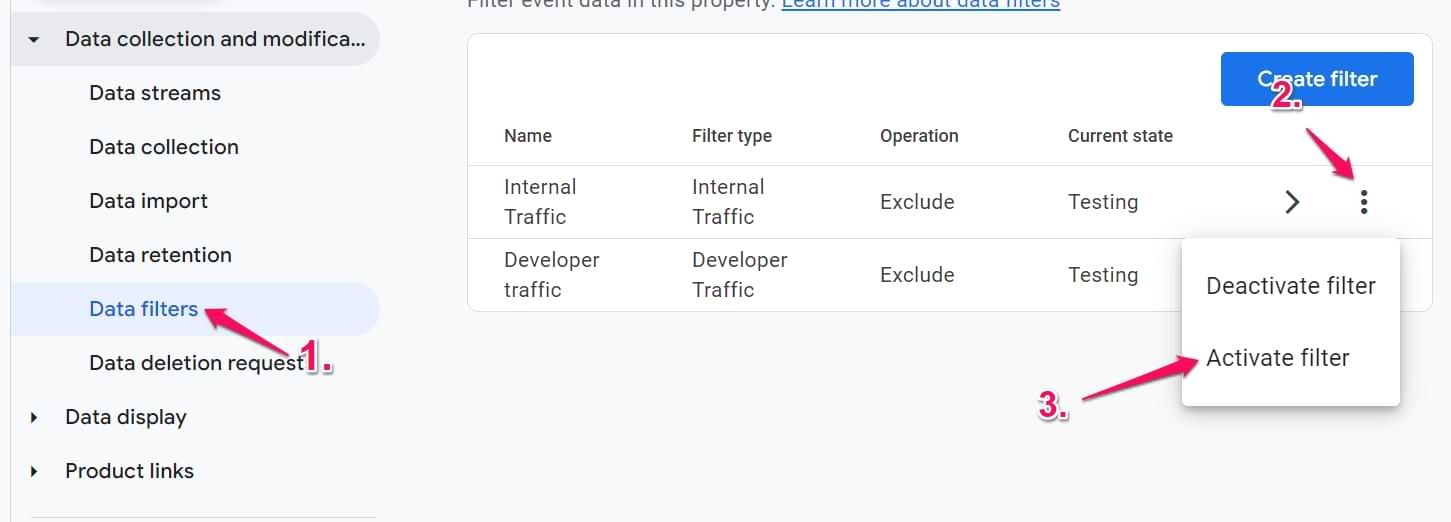
- In Admin, under Data collection and modification, go to Data filters.
- Click Create filter > Internal traffic.
- Name it (e.g., "Internal Traffic"), set Filter operation to Exclude, and match traffic_type to internal (lowercase).
- Set state to Testing and save. This adds a Test data filter name dimension without excluding data—verify in Real-Time reports or Explore (add as secondary dimension).
Step 4: Activate the Filter
Once tested, edit the filter and change state to Active. Save. It excludes matching traffic from standard reports going forward but may still appear in Real-Time reports (GA4 limitation).
Bot Exclusion in GA4
GA4 automatically excludes known bots and spiders via a built-in filter, but you can customize or verify it.
- The default bot filter is active by default under Data filters (state: Active). It blocks traffic from verified bot user agents.
- For custom bot exclusion, create additional data filters matching user agent patterns, or use IP rules for specific crawlers.
- Internal traffic filters do not overlap with bot filters; combine them as needed.
| Common Issue | Resolution |
|---|---|
| Filter not working immediately | Wait 24-48 hours; only affects new data. |
| Still see traffic in Real-Time | Expected; excluded from standard reports. |
| Dynamic IPs (e.g., home) | Use alternatives like custom dimensions or GTM user properties, but IP is most reliable for static offices. |
| Multiple filters needed | Create separate filters (e.g., one per IP rule or custom name like "benjamin"). |
Best practices: Always test first, exclude only necessary IPs to avoid over-filtering legitimate traffic, and monitor via DebugView (note: active filters block DebugView visibility—use Testing mode). Unfiltered internal traffic inflates metrics like visitor counts.
















Maple Ranking offers the highest quality website traffic services in Canada. We provide a variety of traffic services for our clients, including website traffic, desktop traffic, mobile traffic, Google traffic, search traffic, eCommerce traffic, YouTube traffic, and TikTok traffic. Our website boasts a 100% customer satisfaction rate, so you can confidently purchase large amounts of SEO traffic online. For just 720 PHP per month, you can immediately increase website traffic, improve SEO performance, and boost sales!
Having trouble choosing a traffic package? Contact us, and our staff will assist you.
Free consultation